Constraint Monitor
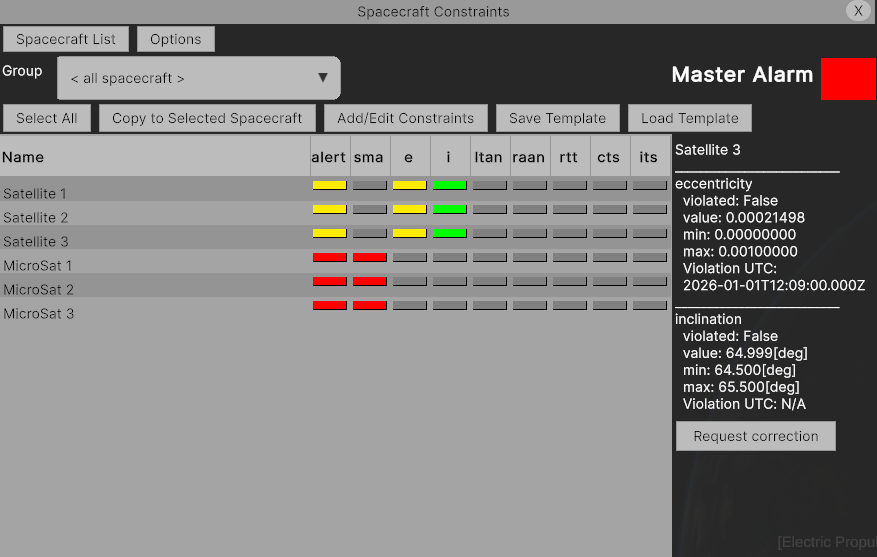
The Constraint Monitor is a real-time spacecraft health dashboard that tracks orbital element and relative-geometry limits across your entire fleet. Each spacecraft can be set up with an absolute or relative stationkeeping constraint and the monitor will continually check for violations. One can set up a look-ahead window to see whether the constraint will be violated in the future.
Use cases
- Station-keeping monitoring — flag when orbital elements (SMA, eccentricity, inclination, RAAN, LTAN) drift outside their stationkeeping box before a maneuver is required.
- Constellation maintenance — track in-track and cross-track separation between formation members; trigger when spacing falls outside a specified range.
- Proximity operations — monitor range-to-target in real time for conjunction avoidance or rendezvous analysis.
- Constraint-driven maneuver planning — use the Request correction button to feed the violated constraint directly into the Maneuver Calculator as a boundary condition.
- Fleet-wide health checks — group satellites by constellation and assess compliance across the group in one view.
Opening the Constraint Monitor
Open the Spacecraft Constraints window from the MDS main menu. The window contains:
| Control | Description |
|---|---|
| Group dropdown | Filter the table to a named satellite group or show all spacecraft. |
| Master Alarm | Red/yellow indicator when at least one constraint is violated across the fleet. |
| Select All | Select all rows in the table. |
| Copy to Selected Spacecraft | Copy the constraints of a specified spacecraft to all currently highlighted spacecraft. |
| Add/Edit Constraints | Open the constraint editor for the selected spacecraft. |
| Save Template / Load Template | Export or import a full constraint set as a JSON template. |
These functionalities are explained in more detail in later sections.
The table columns map to constraint types:
| Column | Constraint type |
|---|---|
alert |
Overall alarm state for the spacecraft |
sma |
Semi-major axis |
e |
Eccentricity |
i |
Inclination |
ltan |
Local time of ascending node |
raan |
Right ascension of ascending node |
rtt |
Range to target |
cts |
Cross-track separation |
its |
In-track separation |
Cell colours: red = constraint violated, yellow = constraint violated within look-ahead window, green = within limits, grey = no constraint set.
Adding and editing constraints in the UI
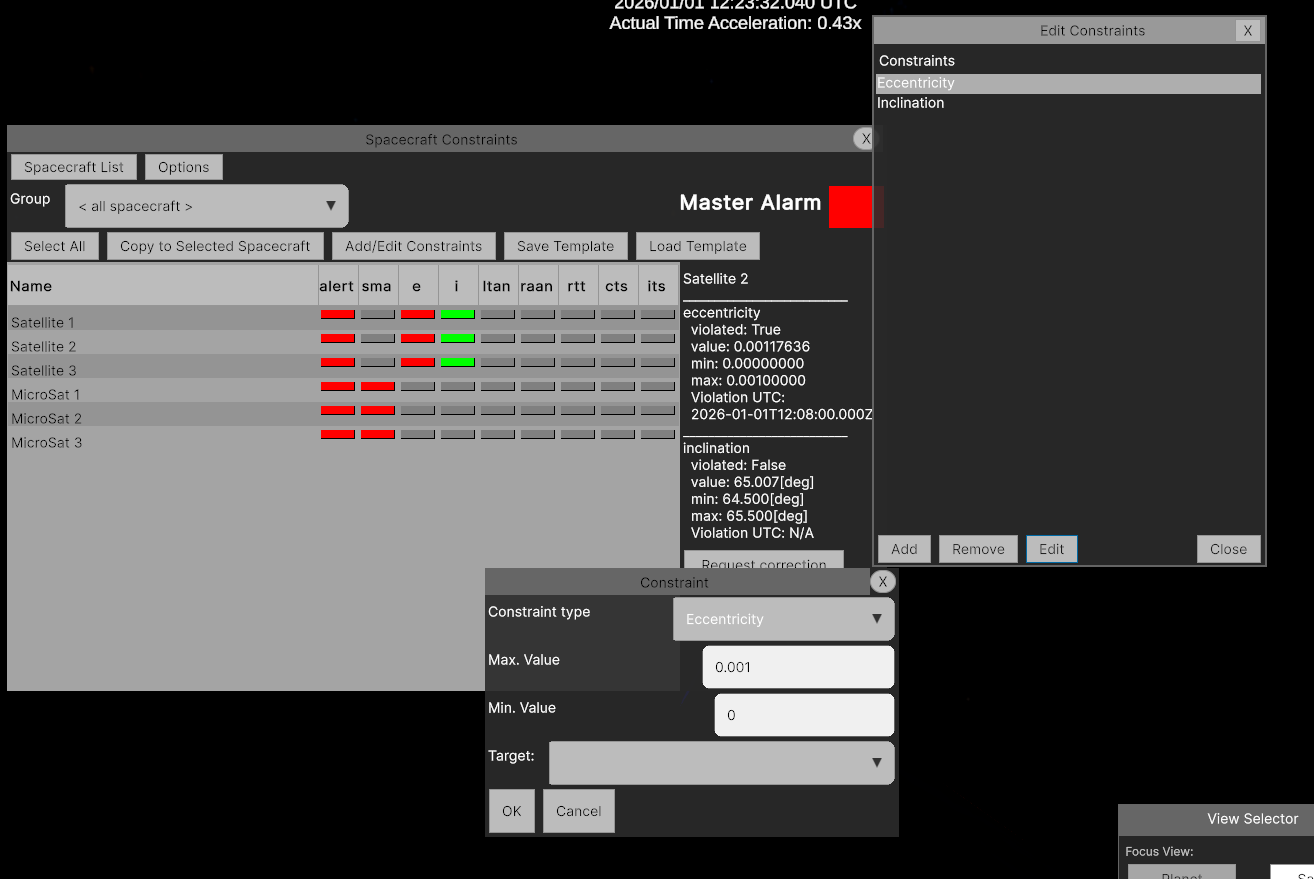
Select a spacecraft in the table, then click Add/Edit Constraints to open the Edit Constraints window. This window lists all constraints currently assigned to that spacecraft.
| Button | Action |
|---|---|
| Add | Opens the Constraint dialog to define a new constraint. |
| Edit | Re-opens the Constraint dialog for the selected constraint. |
| Remove | Deletes the selected constraint from the spacecraft. |
| Close | Closes the editor. |
In the Constraint dialog, fill in:
- Constraint type — select from the dropdown (SMA, Eccentricity, Inclination, LTAN, RAAN, Range to Target, Cross-track separation, In-track separation).
- Min. Value / Max. Value — the lower and upper bounds. Units follow the constraint type (metres for SMA and range, degrees for inclination/RAAN/LTAN).
- Target — only required for relative constraints (Range to Target, Cross-track/In-track separation). Select the reference spacecraft from the dropdown.
Click OK to save. The constraint appears in the Edit Constraints list and the monitor table updates immediately.
Saving and loading templates
Templates let you reuse a constraint set across multiple spacecraft without re-entering values manually.
- Select the spacecraft whose constraints you want to save and click Save Template. A JSON file is saved to disk.
- Select one or more target spacecraft (use Select All or click individual rows), then click Load Template and choose the saved file. The constraints are applied to every selected spacecraft at once.
Alternatively, highlight a spacecraft with the desired constraints and use Copy to Selected Spacecraft to push those constraints to every currently selected row in one click.
Setting constraints via the API
from mds_api import mds_api

# Constraint type integers:
#   1 – SMA [m]        2 – Eccentricity     3 – Inclination [deg]
#   4 – LTAN [hr]      5 – RAAN [deg]       6 – Range to target [m]
#   7 – Cross-track separation [m]           8 – In-track separation [m]

mds_api.set_constraint("Satellite 1", 2, [0.0, 0.001])       # eccentricity 0 – 0.001
mds_api.set_constraint("Satellite 1", 3, [64.5, 65.5])       # inclination 64.5°–65.5°
mds_api.set_constraint("Satellite 1", 6, [0, 500000], "Satellite 2")  # range-to-target
Remove a constraint:
mds_api.remove_constraint("Satellite 1", 2) # remove eccentricity constraint
Future violation prediction
Enable predictive monitoring to forecast when a constraint will next be violated:
mds_api.configure_constraint_prediction(
    prediction_enabled=True,
    look_ahead_JD=5/24,        # look 5 hours ahead
    timestep=60,               # prediction step [s]
    monitorCheckInterval=20    # how often the monitor re-evaluates [s]
)
When active, the detail panel shows an Estimated Violation UTC timestamp for each constraint. A value of N/A means no violation is predicted within the look-ahead window.
Reading constraint state programmatically
jd, constraints = mds_api.get_spacecraft_constraints("Satellite 1", "Satellite 2")

for sat, entries in constraints.items():
    for c in entries:
        print(sat, c['type'], 'violated:', c['violated'],
              'value:', c['value'], 'estimated violation JD:', c['EstimatedViolationJD'])
Templates
Constraint sets can be saved from one spacecraft and bulk-applied to others — useful when all members of a constellation share the same station-keeping box.
# Save constraints from a reference satellite
template = mds_api.save_constraint_template("Satellite 1")

# Apply to a list of satellites
mds_api.load_constraint_template(["Satellite 2", "Satellite 3"], template)
The same workflow is available in the UI via Save Template / Load Template and Copy to Selected Spacecraft.
Requesting a correction maneuver
When a constraint is violated or about to be violated, select the spacecraft in the table and click Request correction in the detail panel. This opens the Maneuver Calculator pre-loaded with the spacecraft state and the constraint boundary as the target condition. See Maneuver Calculator for next steps.
Example
A full worked example covering two satellite groups with different propulsion systems, immediate and future violations, and a guided correction workflow is provided in:
examples/example_constraint_monitor_correction.py