MDS Solaris - Report Generation
The Report Generation capability of MDS Solaris enables the automated creation of analysis reports for mission design, constellation prototyping, and operational studies. It is particularly useful when documenting simulation results or generating reports for selected spacecraft and ground assets within a larger constellation.
Report generation is primarily performed through the MDS Solaris user interface, interacting with the MDS Python API.

Usage
MDS Solaris maintains a record of all spacecraft, constellations, and ground assets defined by the user. The selected entities are assembled into a dedicated scenario and propagated in the background. During propagation, the requested simulation data is collected and exported to the configured Export directory of MDS Solaris.
A JSON configuration file describing the selected points of interest defines the structure and contents of the report. Once the simulation has completed, the exported data is processed by the MDS Python API, which generates the final report in HTML and PDF formats.
Throughout the report generation workflow, validation checks are performed to ensure that all required inputs have been provided. Warning messages are displayed whenever mandatory configuration is missing.
Steps
To generate a report using the MDS Solaris user interface:
- Create or import a constellation.
- Select the spacecraft to be included in the report.
- Select the ground assets of interest.
- Choose at least one fleet calculation to perform.
- Select the spacecraft telemetry parameters to include in the report.
- Configure the required propagation and coverage settings.
- Click Generate Report. If the simulation is not already running, MDS Solaris will automatically start the propagation and analysis.
Once report generation has completed, a notification will inform the user that the HTML and PDF documents have been created.
For fully automated report generation, the MDS Python API should be installed and accessible from MDS Solaris. If the Python environment is unavailable, or additional customization of the report is required, the report can be generated manually by executing:
from mds_api import mds_api
mds_api.generate_report(mission_report_path="C:\Workspace\MDS_Solaris_Unity\MDS Solaris\Export\ReportGeneration\Mission-Report-example\Mission-Report-example.json") The Python report generator provides several configurable options, including customization of the document logo, export directory.
If the user has his space-track account connected to MDS Solaris - the option to change the Collision Data Message (CDM) directory, and the cutoff time used to filter outdated CDMs is provided as they are included in the report.
As the generator source code is fully accessible, users may further customize the report layout and content to meet project-specific requirements.
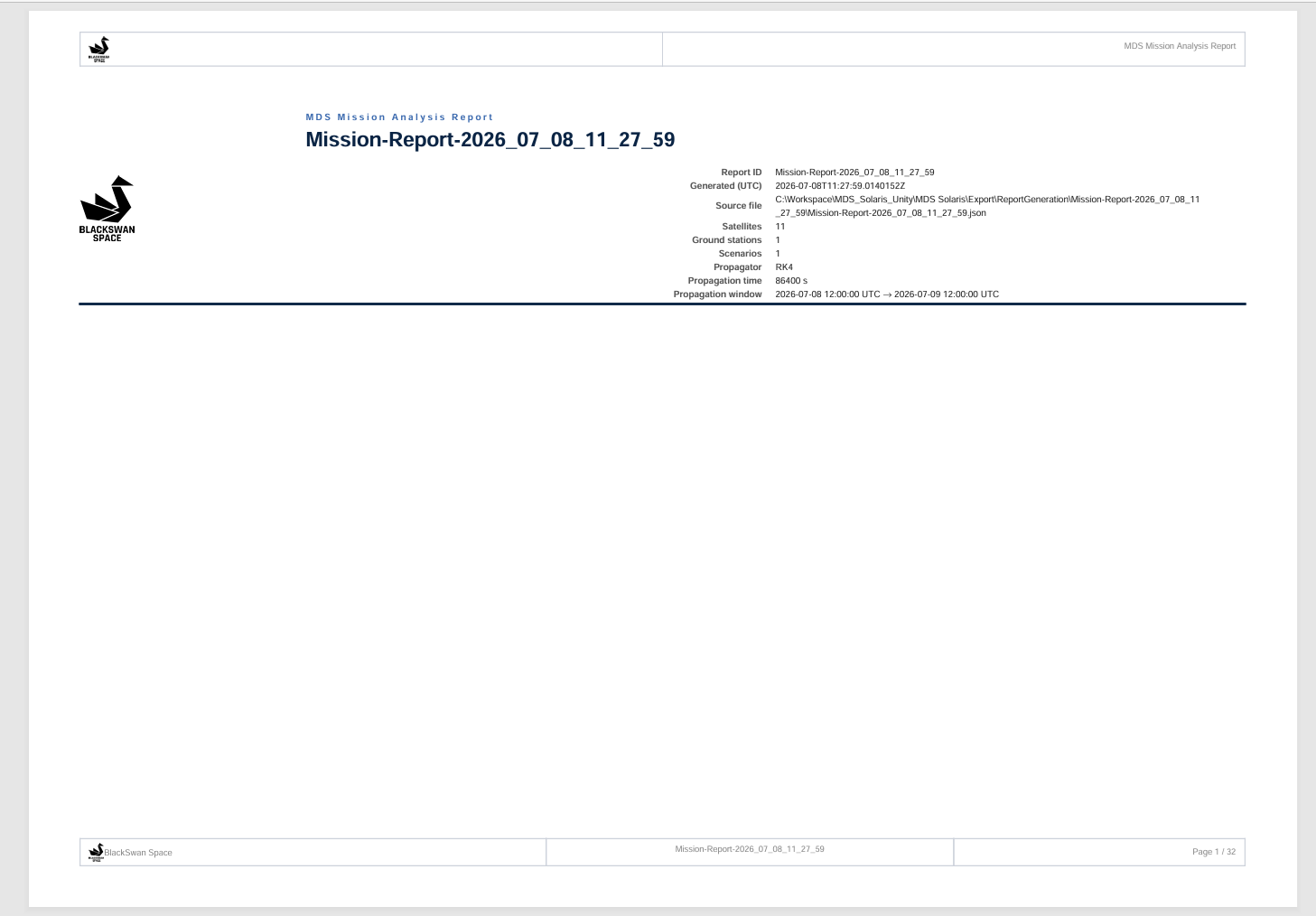
Note: report generation could take from 30 seconds up to 5 minutes or even more, depending on the data selection and the amount of bodies in the simulation.
What data is exported from MDS Solaris
There are two types of data available for the report generation: fleet data and propagated body telemetry.
The report document length as well as generation time will vary greatly depending on the data selected.
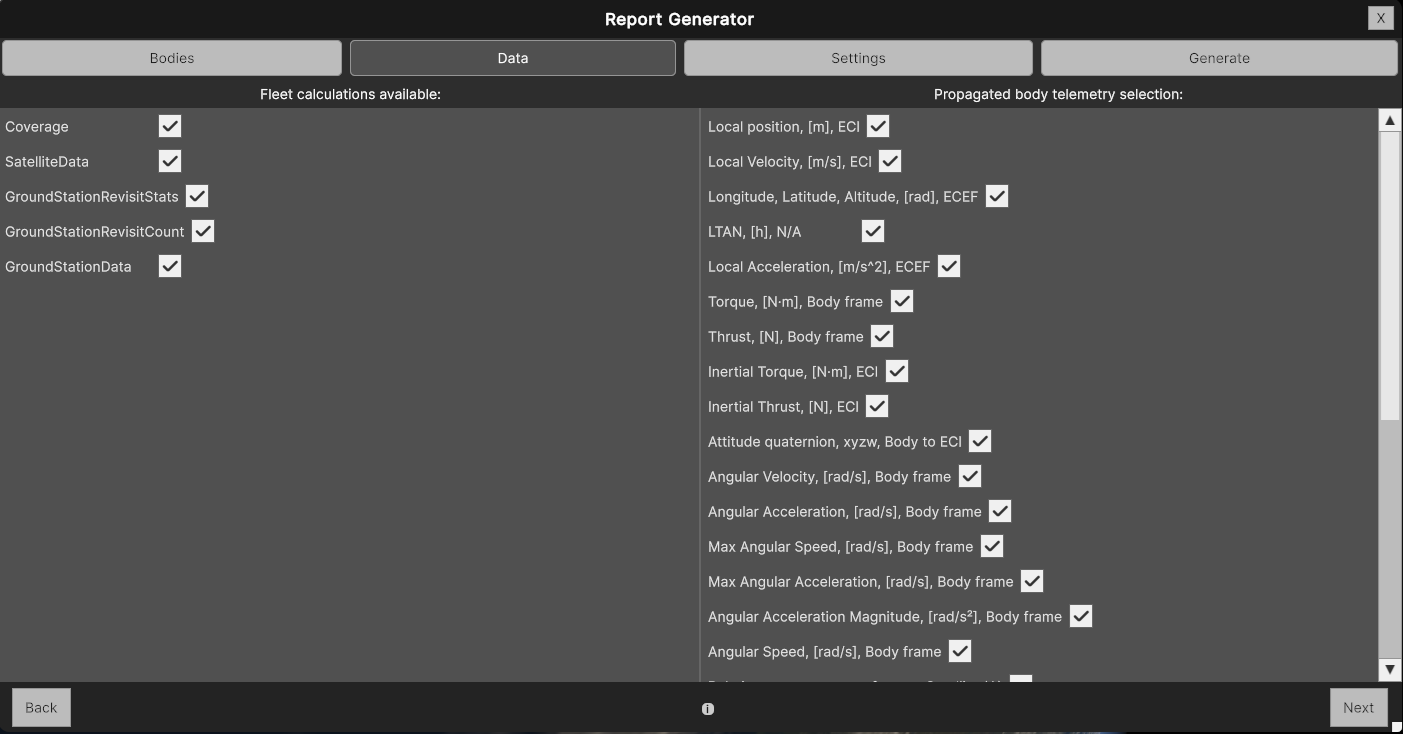
Fleet data
This data consists of the basic calculations for satellite fleets, such as:
Coverage - fleet coverage over Earth during a selected point in time.
Satellite data - time, LLA (longitude, latitude, altitude) [rad], local position [m], ECI, local velocity [m/s], ECI, satellites visible, ground stations visible.
Ground Station Revisit Stats - satellite name, total simulation time, max revisit time, mean revisit time.
Ground Station Revisit Count - satellite name, seconds until next visit.
Ground Station Data - name, dates, local position of ground stations, names of visible satellites, number of visible satellites, elevation of each satellite.
Propagated body telemetry
Custom data that gets exported upon selection.
Computationly heavy, so it is advised to remove unneeded data.
Consists of such options:
Julian date
Date [UTC]
Local Position [m], ECI
Local Velocity [m/s], ECI
Longitude, Latitude, Altitude [rad], ECEF
LTAN [h]
Local Acceleration [m/s²], ECEF
Torque [N·m], Body frame
Thrust [N], Body frame
Inertial Torque [N·m], ECI
Inertial Thrust [N], ECI
Attitude state:
Attitude quaternion (xyzw), Body → ECI
Angular Velocity [rad/s], Body frame
Angular Acceleration [rad/s²], Body frame
Attitude Covariance, Body frame
Max Angular Speed [rad/s], Body frame
Max Angular Acceleration [rad/s²], Body frame
Angular Acceleration Magnitude [rad/s²], Body frame
Angular Speed [rad/s], Body frame
Relative measurements:
Relative measurement reference Satellite (A)
Target Satellite (B)
Relative Position [m], LVLH
Relative Velocity [m/s], LVLH
Relative Position X [m], LVLH
Relative Position Y [m], LVLH
Relative Position Z [m], LVLH
Relative Velocity X [m/s], LVLH
Relative Velocity Y [m/s], LVLH
Relative Velocity Z [m/s], LVLH
Kepler Elements:
Semi-major Axis [m], Kepler Elements
Eccentricity [-], Kepler Elements
Inclination [deg], Orbital Plane
RAAN (Right Ascension of the Ascending Node) [deg], ECI
Argument of Periapsis [deg], Orbital Plane
True Anomaly [deg], Orbital Position
Settings
The Report Generation supports different propagator and coverage settings:
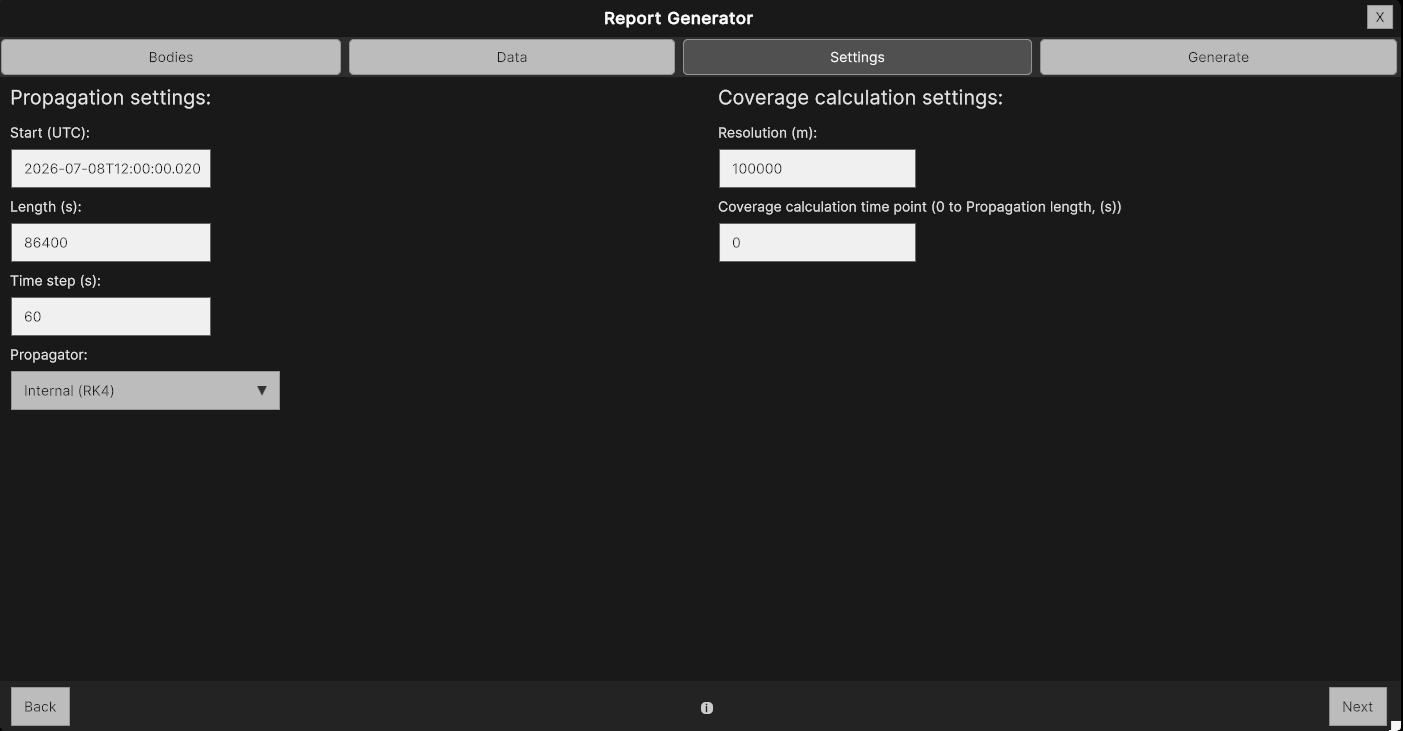
Start time, propagation length, time step and the propagator model (Internal, Tudat, SGP4) can be selected.
Propagation time step will change the density of the data received so it is advised to choose it depending on the needs.
Coverage settings consist of resolution - it will impact the accurracy of the coverage map with bigger resolution making the coverage map denser, and time point - seconds from the propagation start time to the moment of interest it is calculated at.
Generation
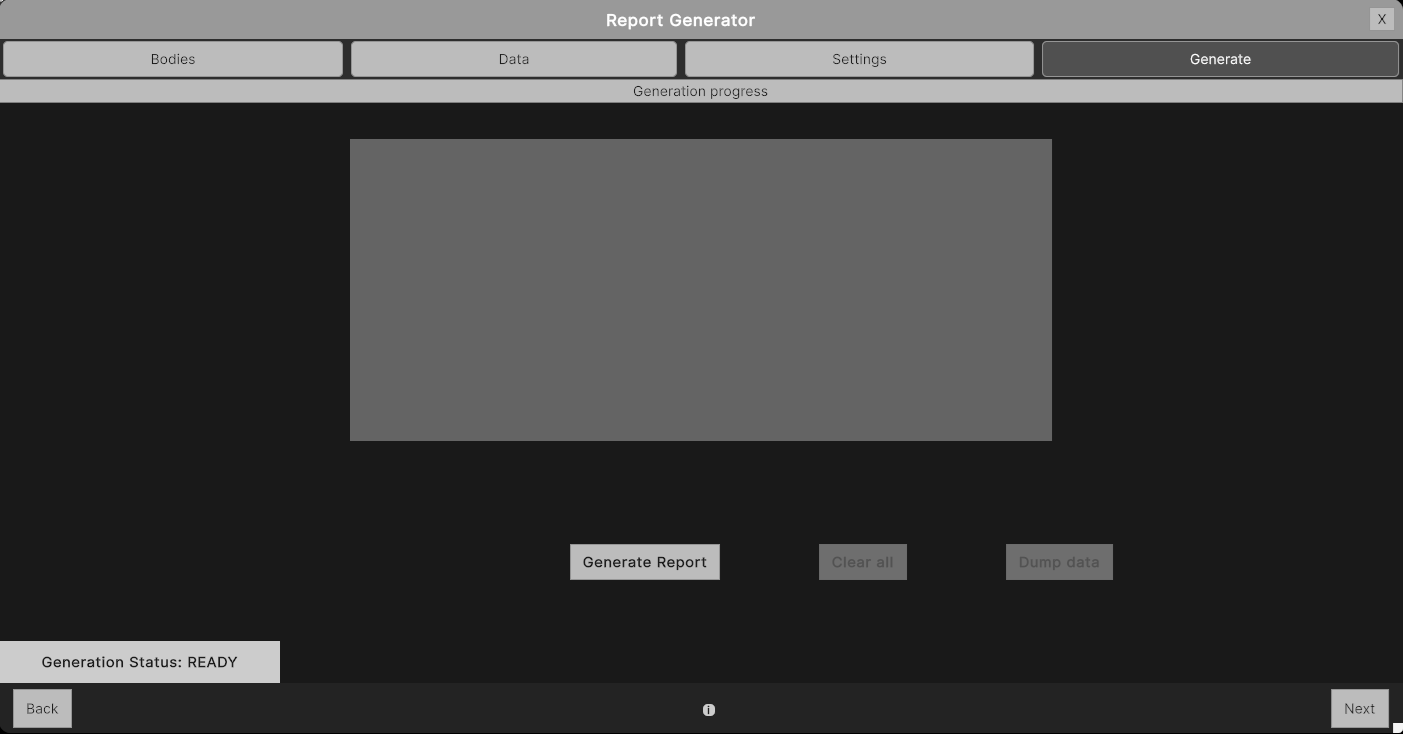
The last tab in the UI is the "Generate" tab.
Here you can see the generation status and start the report generation.
Message windows will pop up if there's any input missing and when the generation completes.
Once generation is started the user can either abort the generation by clearing all the settings and data generated or dump the currently available data and generate the report with what is available.
When a report is cleared/dumped or generated the Propagator, Coverage and Data settings remain the same. Only the Propagated Bodies and Ground Assets are cleared from selection.