Propagation Control using UI
You can switch between the internal propagator through the general settings window:
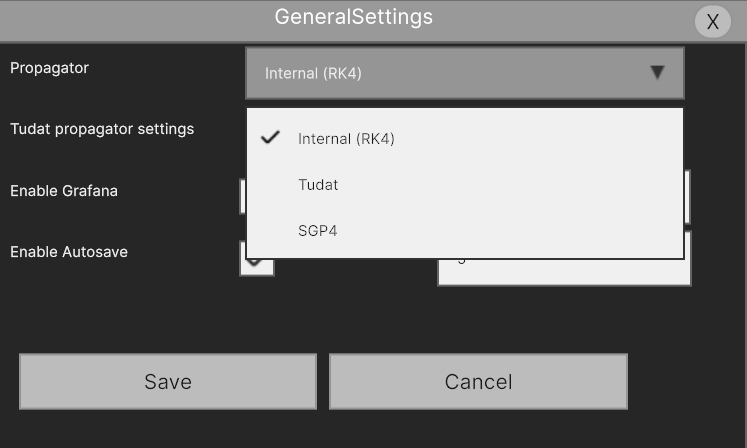
As of MDS 1.5.0, you are able to select between:
- Default/Internal - RK4; Earth J2; point mass accelerations from remaining perturbing bodies.
- TUDAT (installation required) - highly configurable, high fidelity. More on its use can be found in the TUDAT guide page
- SGP4 - best for use with mean elements, requires initial Two Line Elements (TLE) input.
Controlling propagation speed
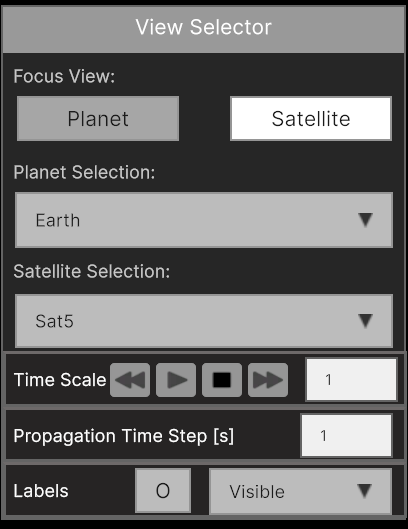
Changing the propagation speed is possible in the View Selector Panel via the Time Scale and Propagation Time step rows.
- Time Scale- the rate at which MDS executes propagation steps
- Propagation Time Step - the size of the propagation step, which defaults to 10 ms.
While the Time Scale can make the propagation run faster, the simulation speed will be limited by your CPU. To truly accelerate the propagation on any system, try increasing the Propagation Time Step to 100 ms or even 1-60 seconds.
Setting Solar System Time
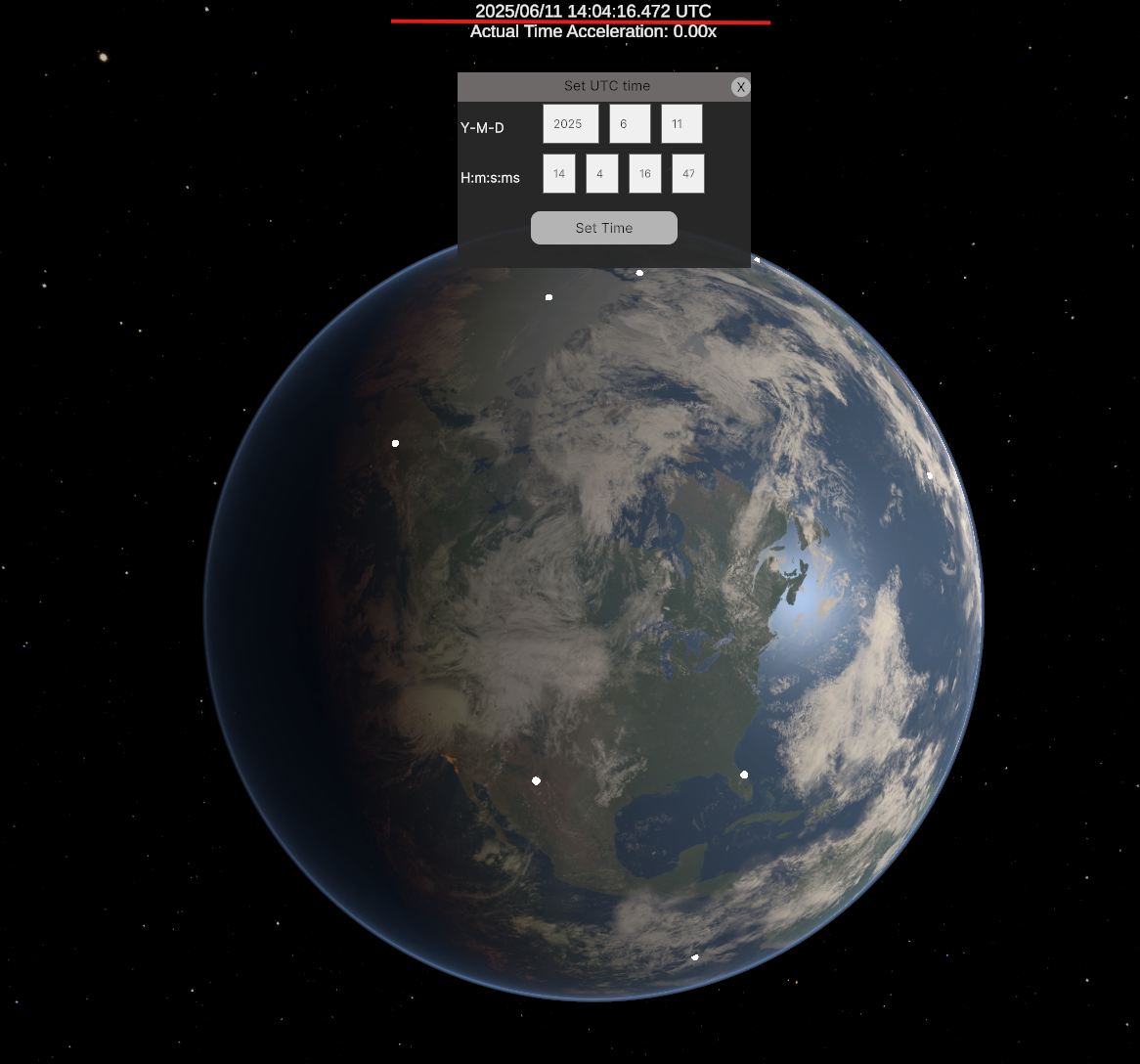
To change the date, click on the time label. A dialog will appear, allowing you to adjust the time. Selecting a specific time will update the positions of celestial bodies in the solar system.
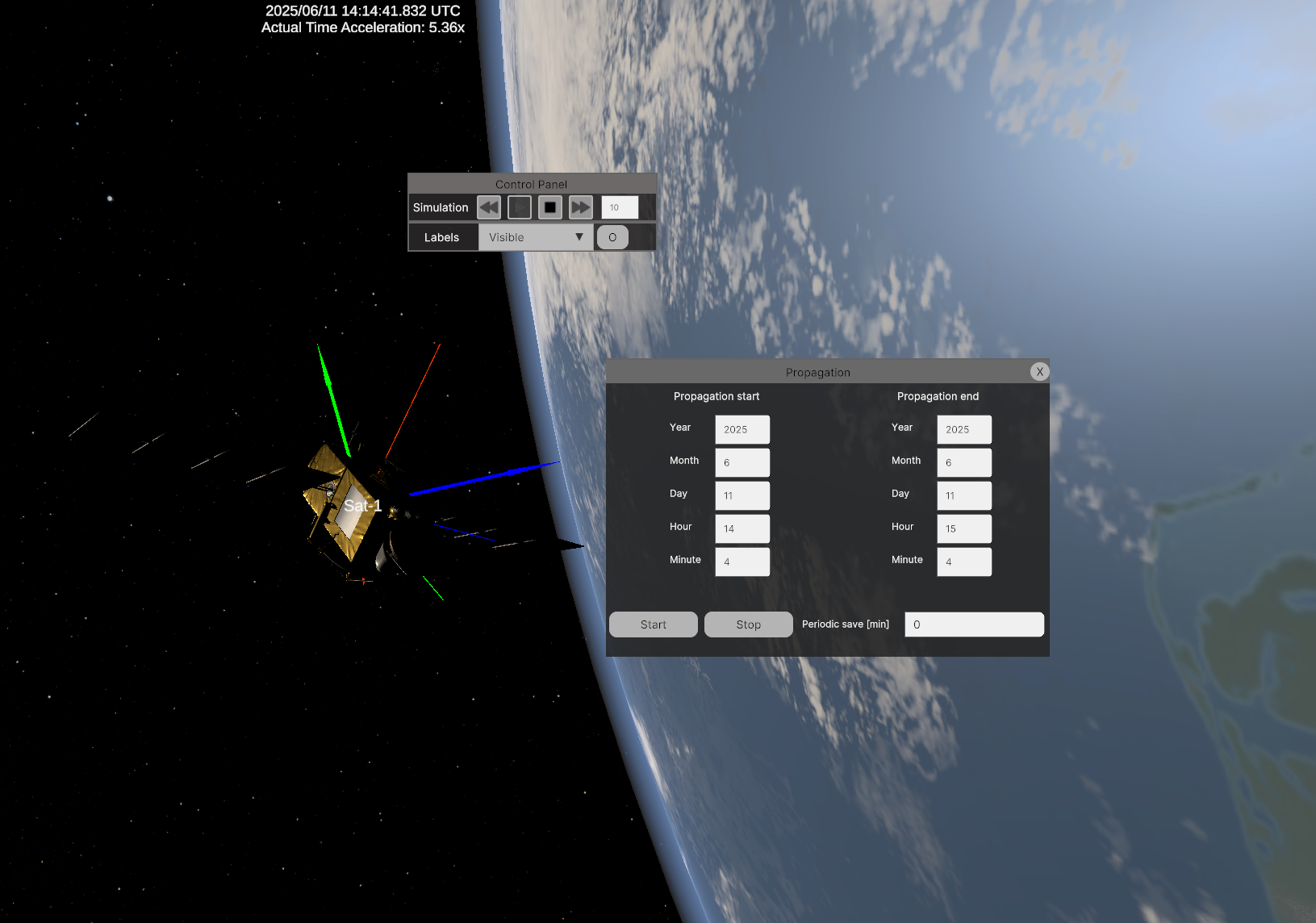
Simulation Without Visuals
You can also run the simulation without visuals, which significantly increases performance. In the Propagation dialog, set the start and end dates for the simulation.
There is also a Periodic Save field, where you can enter the time interval (in minutes) at which the scene will be saved to your hard drive. For example, to simulate one day and save results every 60 minutes, simply enter 60 in the Periodic Save field.
All data will be saved in the folder: MDS_Install_Folder/Export/Propagation