MDS Solaris
Welcome to the Quick-start guide which will show you some of the first features you see after launching the Mission Design Simulator.
Quick start - Launching MDS
This is the main MDS directory.
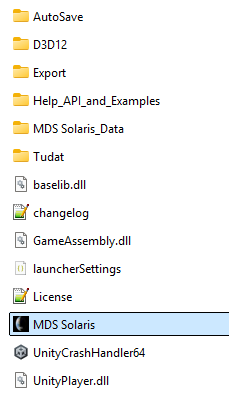
To start using MDS Solaris you need to launch "MDS Solaris.exe" , which will open the initial launcher window.
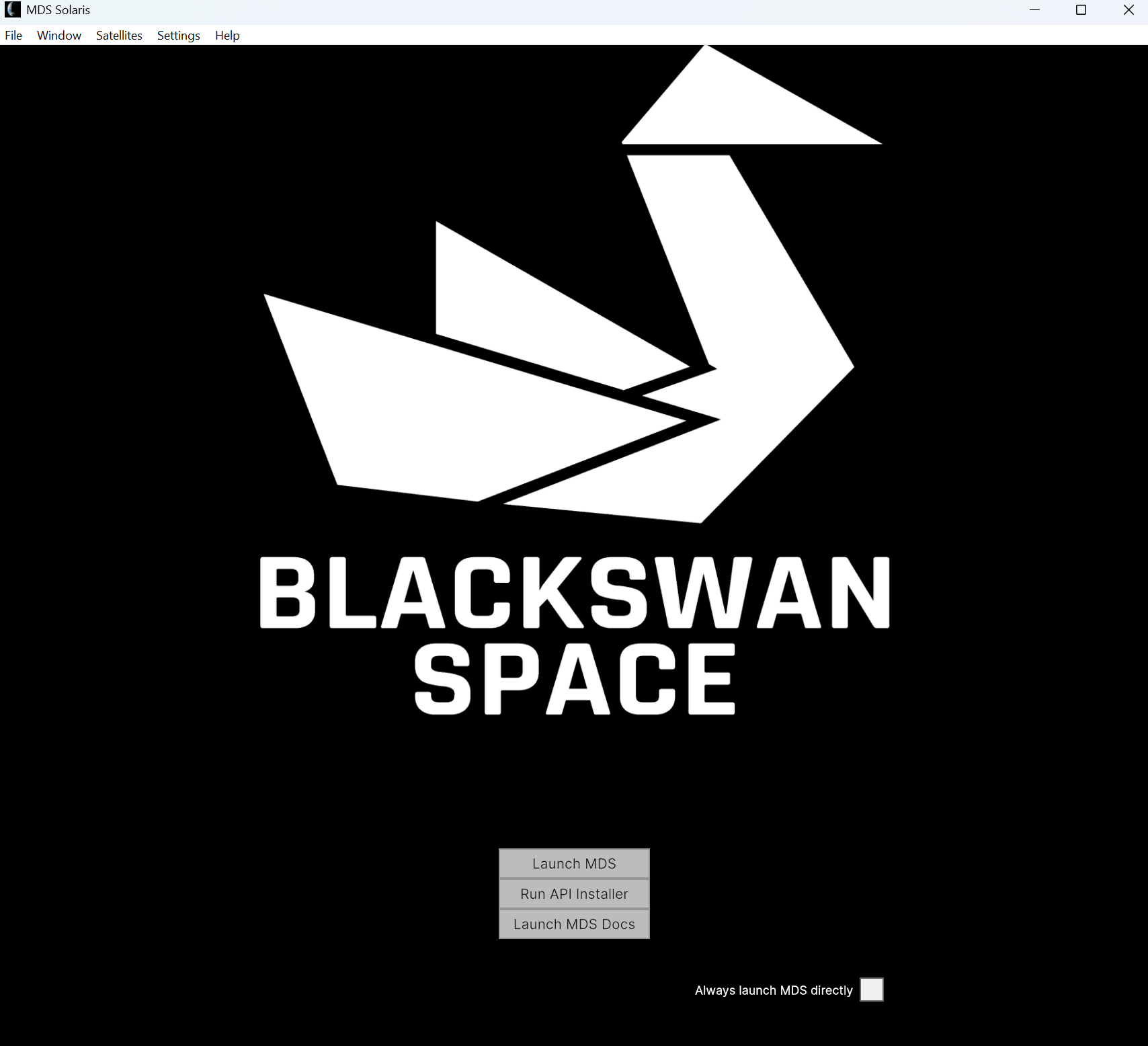
Through this launcher, you can start MDS, run the automatic API installer (requiring admin privileges) or open the documentation.
Open a basic scenario
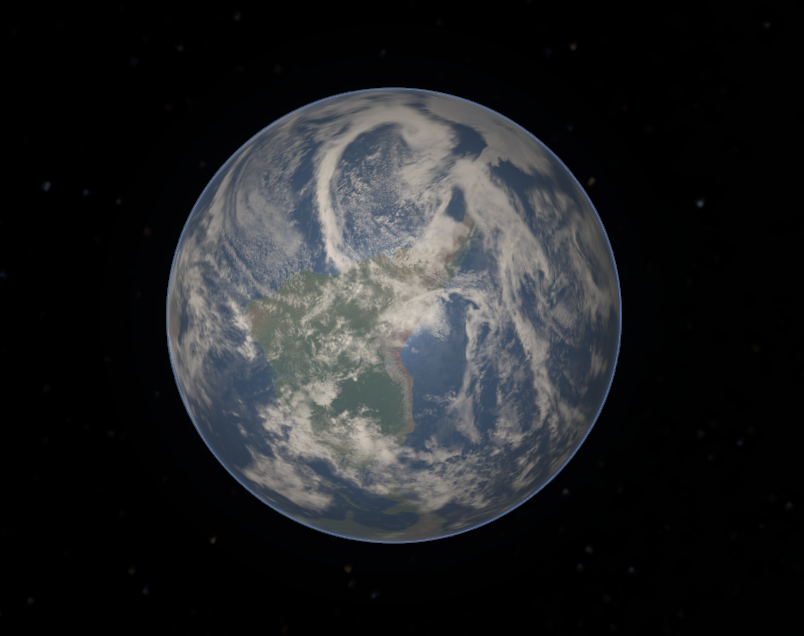
You should see a view of the Earth, you can directly navigate this space using the mouse.
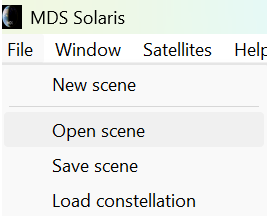
Now, in the top left corner of the application window
click on File and Open.
You should see a file explorer dialog. Navigate to the
MDS folder, from which you launched the application and from there into Help_API_and_Examples/Configs/
folder. There you should see a file 'basic_scene.json'.
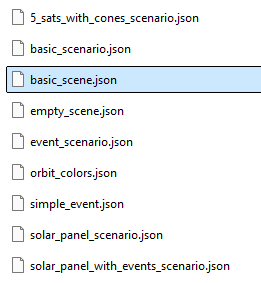
This is a configuration file
containing a simulation scenario description. Double click on this file. You should
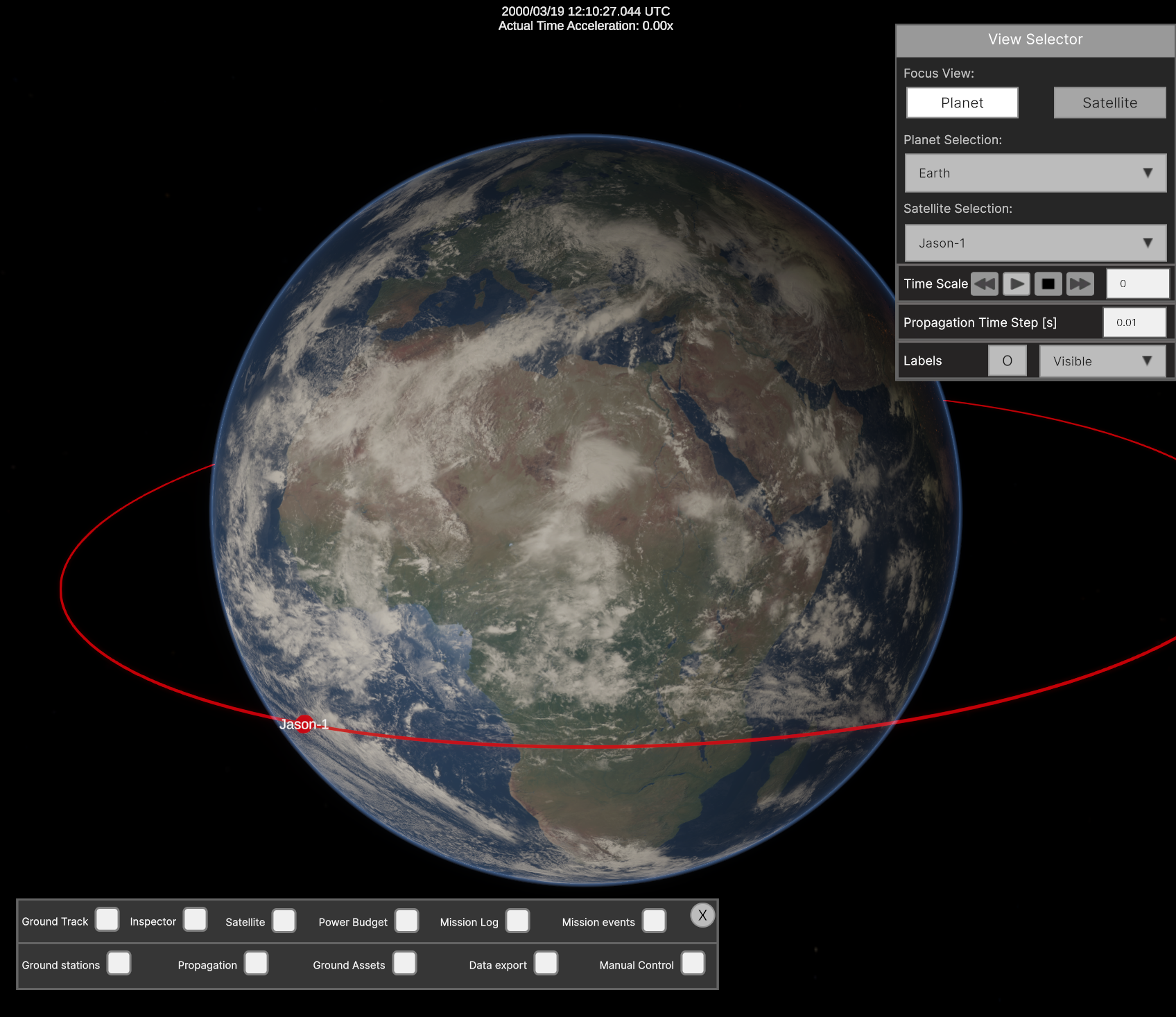
now see a satellite placed in orbit around the Earth and a UI window with the
satellite data. On the right
hand side you will also see an object selection panel containing all the planets and
our spacecraft 'Jason-1':
Running the simulation
To run the dynamics propagation, click the Play Arrow Button in the Time Scale row of the View Selector. To switch from Planet to a Satellite-centered view, you can double click on the satellite-bubble in-orbit or the Satellite Button in the View Selector panel. There are two sets of arrows indicating two coordinate frames.
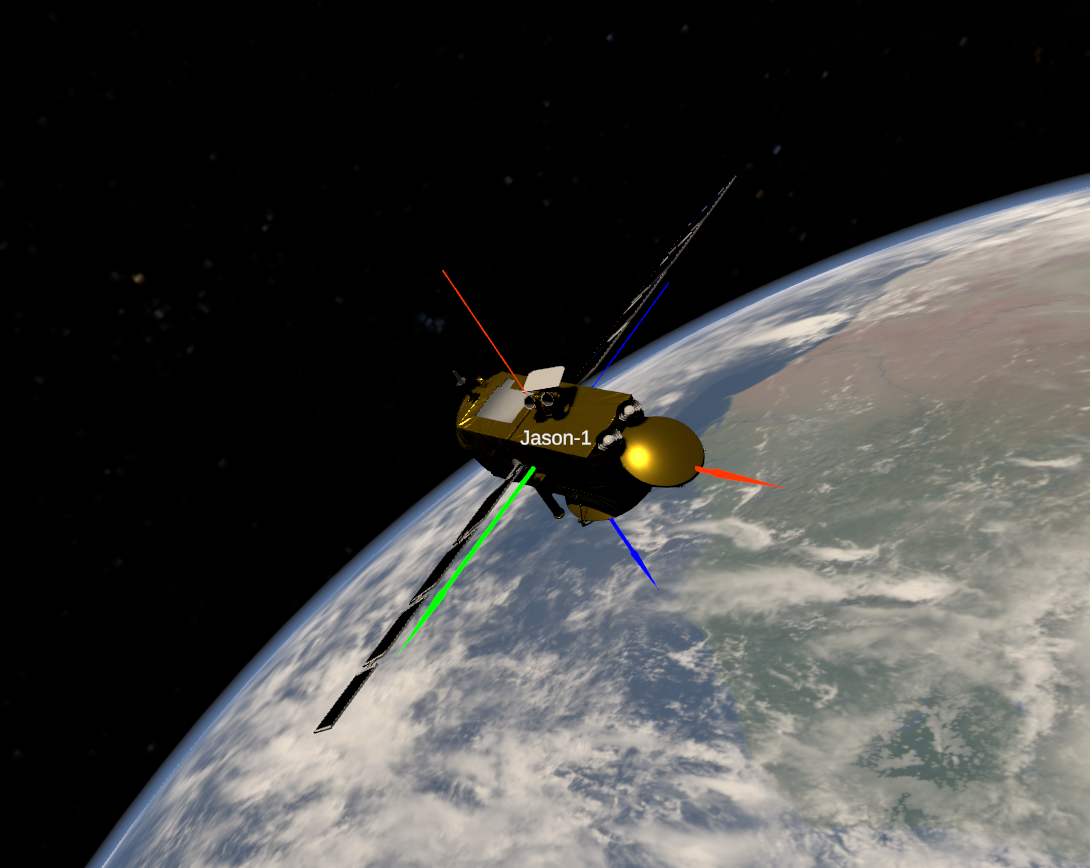
The thick arrows represent the Local Vertical Local Horizontal (LVLH) coordinate frame, where X (red) is pointing in the direction of travel, Z (blue) is pointing towards the center of the planet and Y (green) completes the right-handed reference frame. Meanwhile, the thin arrows indicate the body-fixed reference frame of the spacecraft, which you should see turning towards the nearest ground station. This pointing mode was specified in the 'basic_scene.json' configuration file we opened.
Customizing the scenario
There are three ways to setup and modify the simulation in MDS Solaris:
- Through the UI
- Manually editing the JSON config
- Through the API - for Power Users. This requires Installation