UI Overview
Scenario navigation and customisation is quickly accessible through the UI. The main windows and their features are described below.
Window Manager

The Window Manager lets you open and close all available UI panels. Toggle any checkbox to show or hide the corresponding window:
- Ground Track — enable/close the Ground Track map
- Inspector — view internal settings and attributes computed in MDS
- Satellite — toggle the Satellite Control panel
- Power Budget — toggle the power subsystem window
- Mission Log — view history of mission events/scenario edits
- Mission Events — create mission events
- Ground Stations — show/hide ground stations
- Propagation — perform long propagaton to advance the main-scene
- Ground Assets — view and edit the list of ground assets
- Export Sensors — enable sensor data exporting
- Manual Control — enable keyboard control of a rigid-body satellite
- Settings — open scenario and simulation settings
- Constraint Monitor — open the spacecraft constraint health dashboard (see Constraint Monitor)
- Export Sat — open the Satellite/Constellation Export/Import window (CSV / OMM / TLE)
- Grouping — open the satellite group manager
- Maneuver Calc — open the Continuous Thrust Maneuver Calculator (see Maneuver Calculator)
- Report Generation — open the report generation window (see Report Generation)
View Control Panel
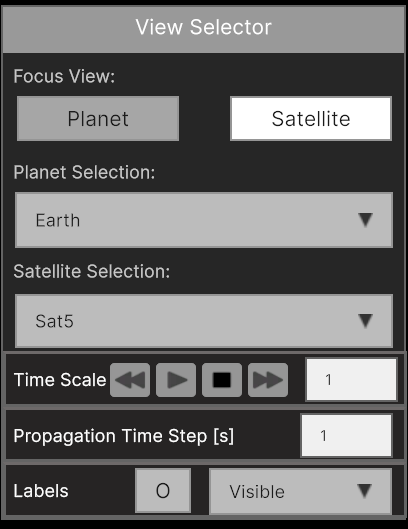
In the View Control Panel you can switch between satellite- and planet-centred views and select the focused object. You also have control over the run-time:
- Time Scale — the rate at which MDS executes propagation steps
- Propagation Time Step — the size of each propagation step (default 10 ms)
Satellite labels can be hidden from this panel.
Ground Track
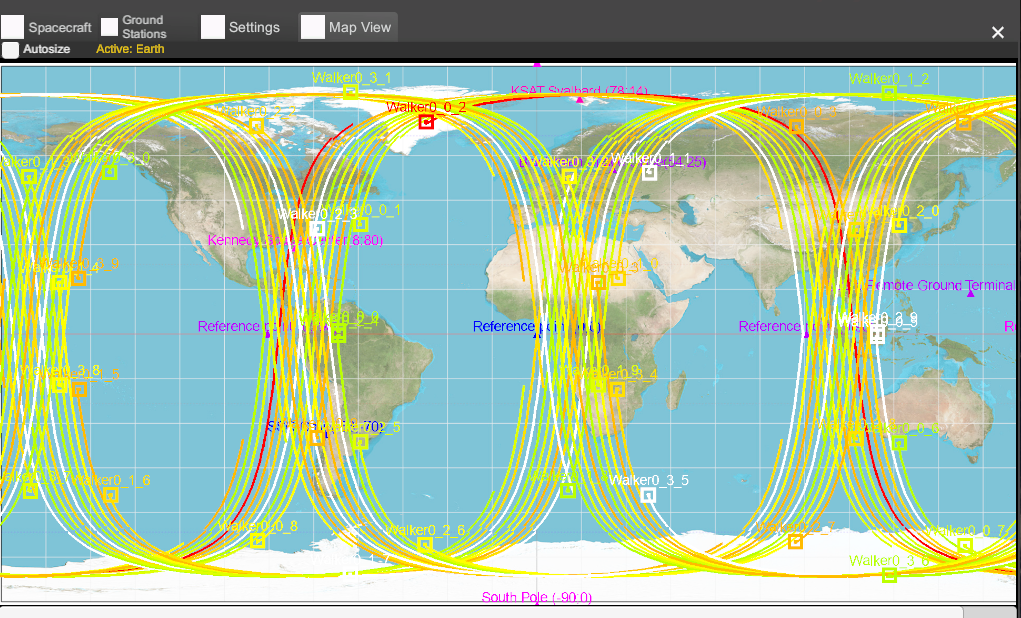
MDS has a native ground-track visualiser for actively monitoring the ground tracks of any selected satellites relative to configured ground stations.
Satellite Control Panel
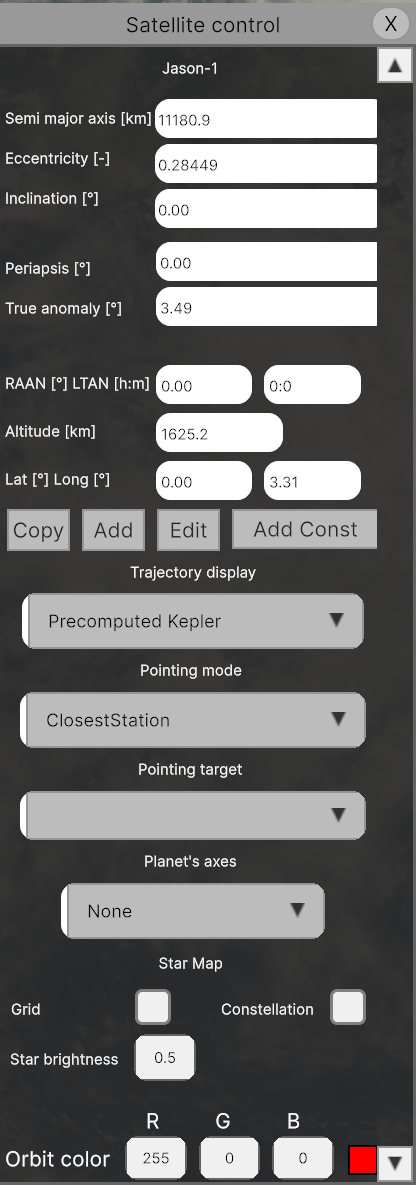
The Satellite Control panel shows live orbital element readouts for the selected spacecraft and allows direct scenario modification:
- Add Sat / Edit Sat — add a new satellite or edit an existing one's state
- Add Const / Edit Const — add or edit a satellite constellation
- Trajectory display — choose the trajectory arc visualisation style
- Pointing mode — change the attitude pointing logic (Idle, Nadir, Sun-pointing, etc.)
- Pointing target — select the reference body or object for the pointing mode
- Planet's axes — display planetary reference frame axes
- Star Map — toggle the star grid and constellation lines, adjust star brightness
The translational state and other properties are modifiable in real-time via Edit Sat.
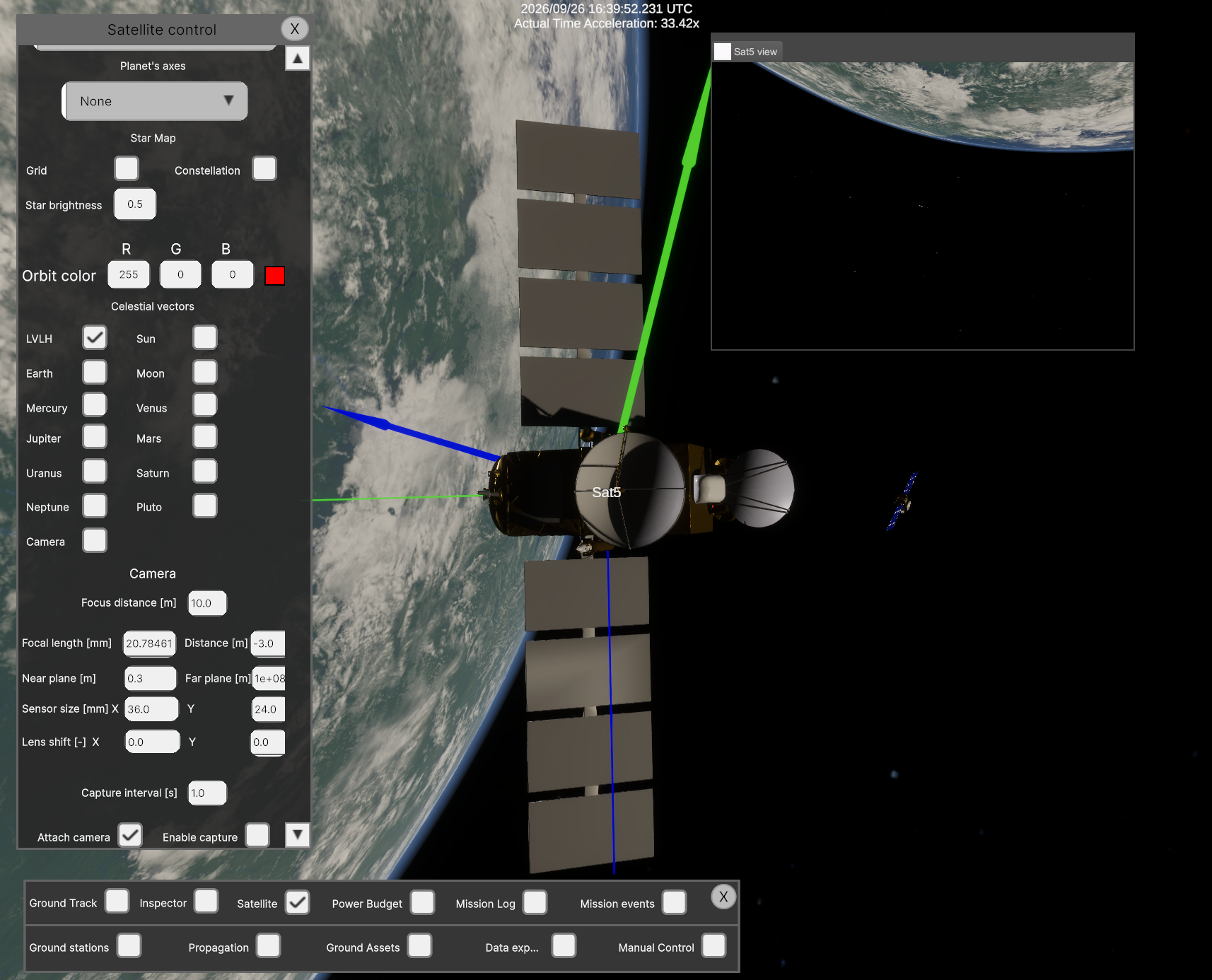
The camera subsystem can be attached to a satellite and configured here. A limited set of parameters are available via UI; the full camera configuration is available through the API.
Mission Log
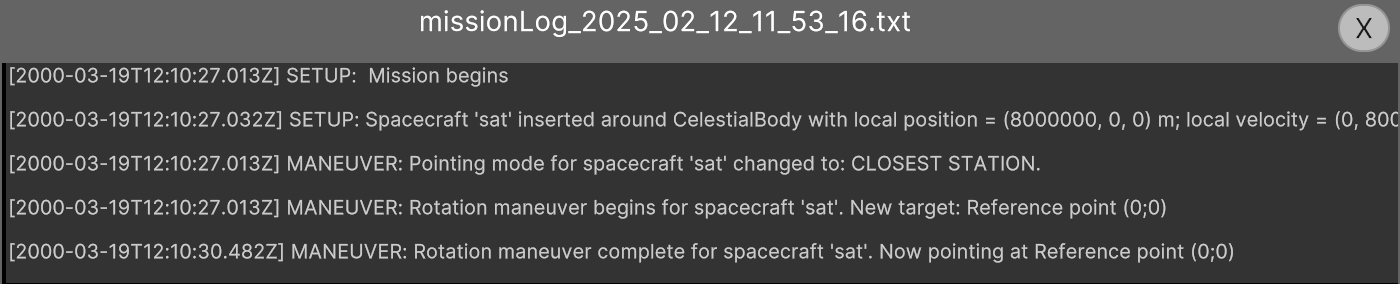
The Mission Log records events such as pointing mode changes, thrust events, and scene modifications, together with their timestamps. Logs are automatically saved to Export/MissionLogs/.
Data Exporter
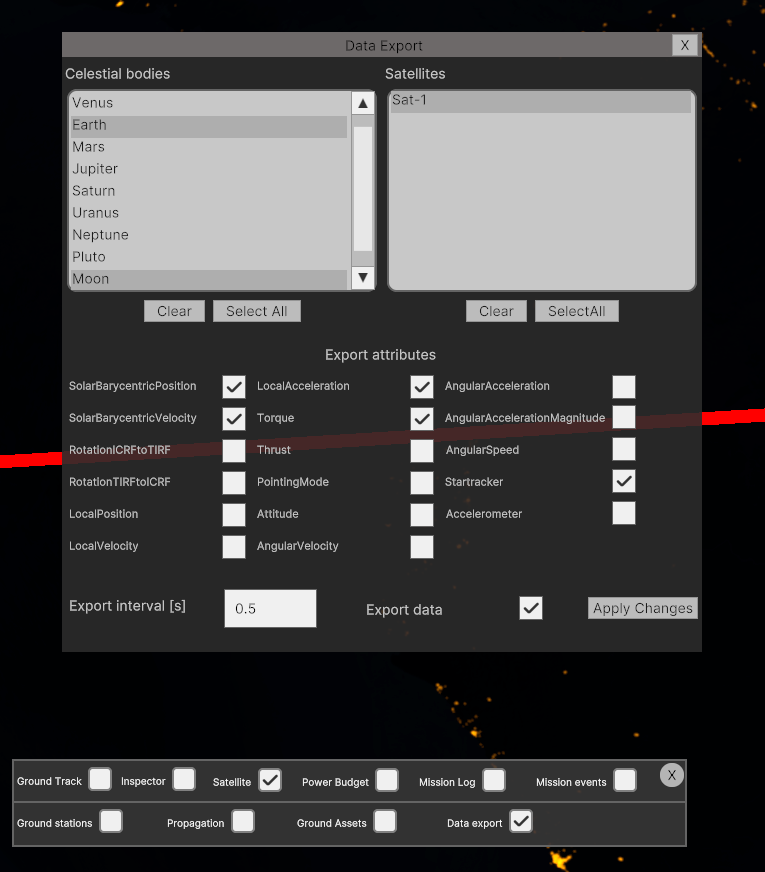
MDS can export selected data in CSV format through the UI. Open the Data Export window, select the celestial bodies and satellites to export, choose the export attributes, check Export Data, and click Apply. All selected data will be exported when the simulation runs.
File location: MDS Install Directory/Export/DataExport/
More data is available through the API and is demonstrated in the example scripts.
Constraint Monitor
The Constraint Monitor tracks orbital element and relative-geometry limits across the fleet in real time, flagging violations and predicted future violations. See the full documentation: Constraint Monitor.
Export Constellation
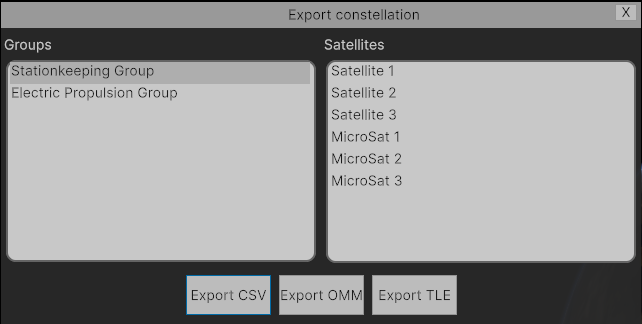
The Export Constellation window exports the current orbital state of all or selected satellites:
- Groups — filter the satellite list by group.
- Satellites — select individual satellites to include in the export.
- Export CSV — export Keplerian elements as a CSV file.
- Export OMM — export in CCSDS Orbit Mean-elements Message format.
- Export TLE — export as two-line element sets.
Grouping
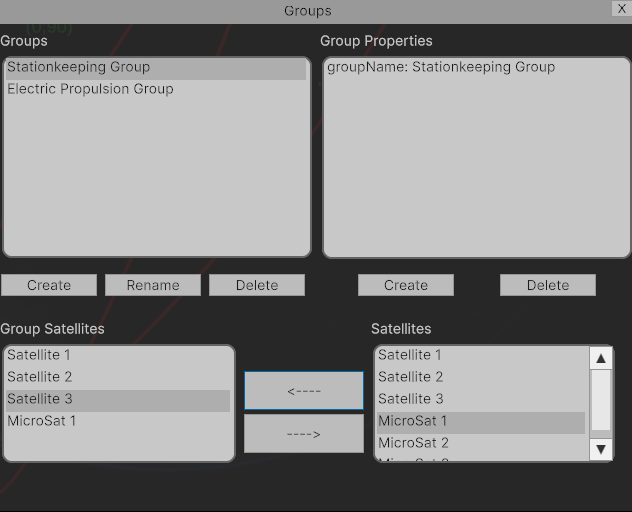
The Groups window lets you create and manage named satellite groups, which are used by the Constraint Monitor, Maneuver Calculator, and scenario filtering.
- Groups (top-left) — list of all defined groups. Select one to view its members and properties.
- Group Properties (top-right) — displays key-value properties attached to the selected group.
- Group Satellites (bottom-left) — satellites currently assigned to the selected group.
- Satellites (bottom-right) — all satellites in the scene. Use the
<----/---->arrows to move satellites into or out of the selected group.
| Button | Action |
|---|---|
| Create (Groups) | Create a new named group. |
| Rename | Rename the selected group. |
| Delete (Groups) | Delete the selected group. |
| Create (Group Properties) | Add a key-value property to the group. |
| Delete (Group Properties) | Remove the selected property. |
Maneuver Calculator
The Maneuver Calculator computes fuel-optimal continuous-thrust maneuver profiles and verifies them through a dynamics simulation before committing to the main scenario. See the full documentation: Maneuver Calculator.
Report Generation

The Report Generator produces HTML and PDF mission analysis reports from a propagated scenario. It is a four-tab wizard:
| Tab | Purpose |
|---|---|
| Bodies | Select which satellites and ground assets to include using the left/right arrow pickers. |
| Data | Choose fleet calculations (Coverage, Satellite Data, Ground Station Revisit Stats/Count/Data) and per-satellite telemetry channels to export. |
| Settings | Configure propagation start time, length, time step, propagator, and coverage calculation resolution. |
| Generate | Trigger the report run, monitor generation status, and optionally dump partial data or clear the session. |
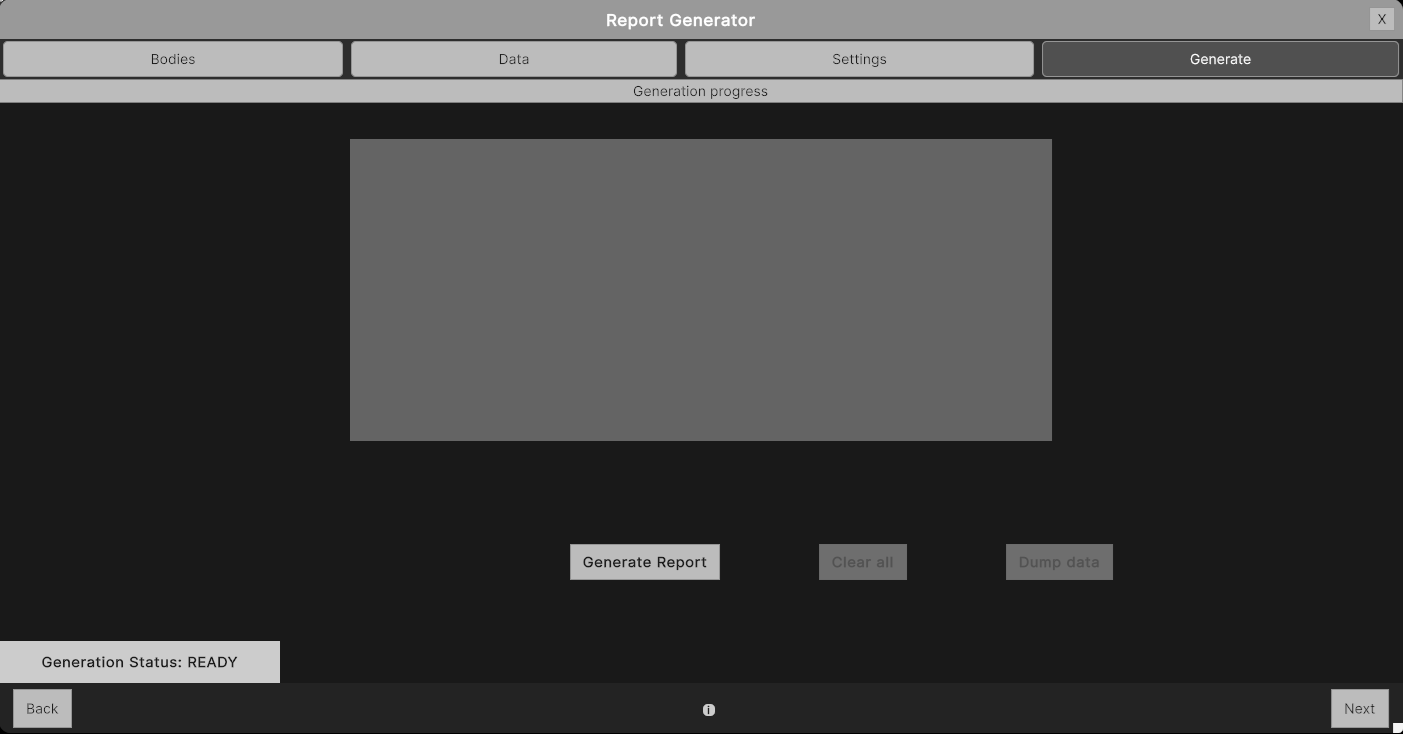
Once generation completes, the report is written to Export/ReportGeneration/ as both HTML and PDF. See the full documentation: Report Generation.